
Connect Your Website to Mistral AI
Use Mistral AI to build and manage your website through simple conversations. Once connected, you can create pages, write blogs, and manage your website effortlessly.
Getting Server URL
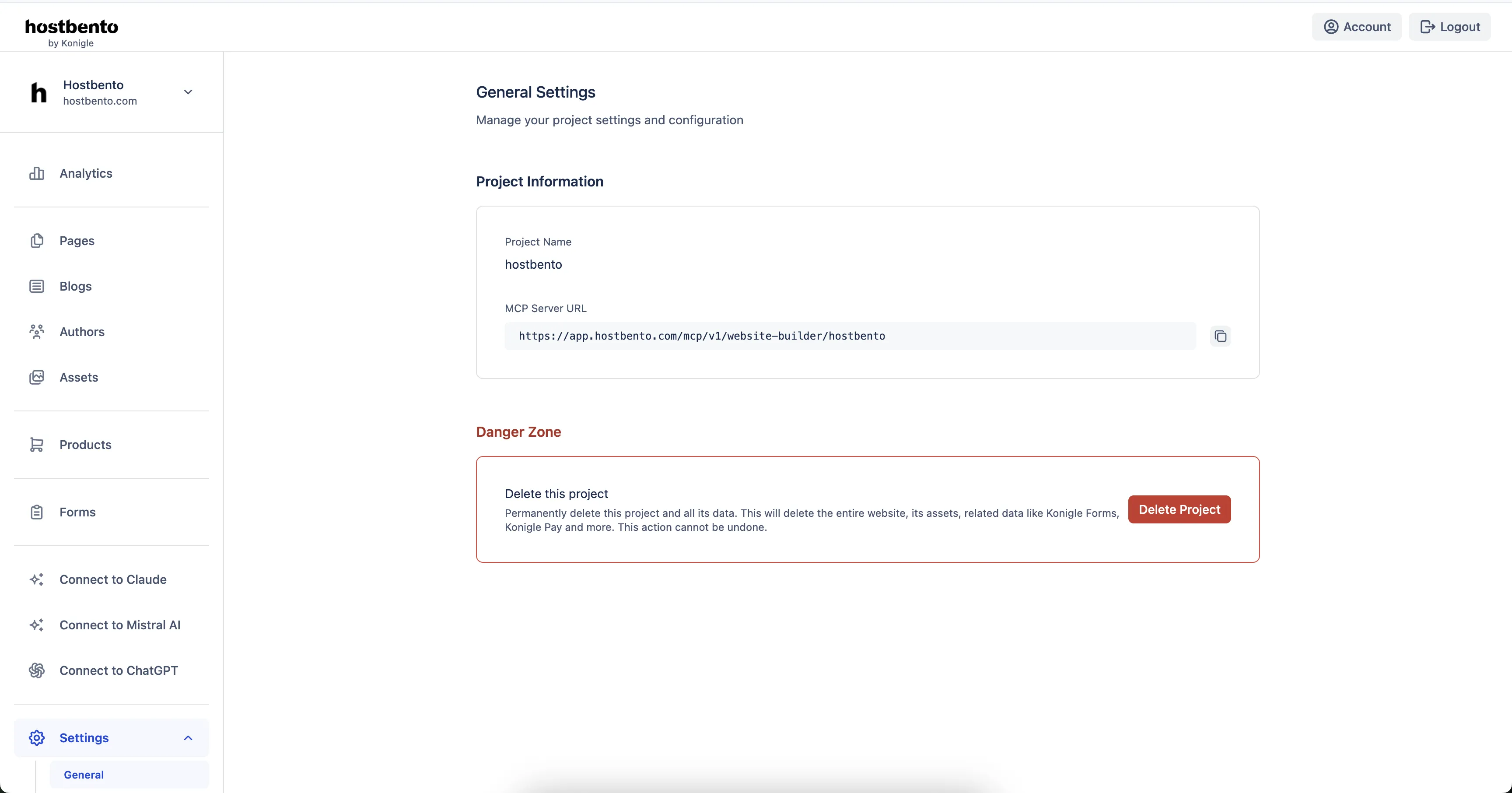
You'll need MCP server URL to connect Claude. Login to Hostbento dashboard and navigate to Settings > General to find your unique MCP server URL.
Steps to Connect
- From the Mistral AI side panel, navigate to Intelligence > Connectors.
- Click on "Add Connector" and select "Custom MCP Connector".
- Enter a name like "Hostbento (Your Website Name)"
- Copy and paste the above server URL into the Connector Server field
-
Select the Authentication Method as "OAuth2.1"
-
Press Connect
- You will be redirected to authorize the connection. Select the project / website you want to connect and authorize.
- This should add the Hostbento connector to your Mistral AI account.
- Click on the newly added Hostbento connector and enable all tools under the Function tab. You have to do this one at a time for each tool.
-
Now start a new chat and under the Tools, enable the Hostbento connector before starting to chat with the assistant.
-
Try: "Create a landing page for my website", "Show me the north star of my website"
What You Can Do
Once connected, you can:
- Create landing pages for your website
- Customize header and footer
- Write and publish blog posts
- Optimize your website for SEO
- Update existing content
- Manage your website through natural conversations